7 Best Fixes for USB Hub Not Recognizing My Hard Drive?

Time:2026-09-08 Author:Sienna
0%

Why is my USB hub not recognizing my hard drive? This frustrating problem often appears without warning. The drive may work perfectly when connected directly to your computer. Yet, through the hub, it may stay invisible, disconnect repeatedly, or produce a faint clicking sound. These symptoms usually point to power limits, damaged cables, incompatible ports, or missing system permissions.

A USB hub shares one connection between several devices. That convenience can become a weakness when an external hard drive needs more power than the hub can provide. Bus-powered drives are especially sensitive. A bright activity light does not always mean the drive is receiving stable power. In my experience, changing one cable solves some cases, while checking Disk Management or Finder reveals others. Still, guessing wastes time.

This guide presents seven practical fixes for USB hubs that fail to recognize hard drives. You will learn how to test the hub, inspect cable condition, connect external power, and verify whether the operating system detects the disk. The steps focus on safe troubleshooting rather than risky repairs. Back up important files whenever the drive becomes visible. A partial connection can fail suddenly. If the drive clicks continuously, becomes unusually hot, or disappears across multiple computers, stop testing and consider professional data recovery. The process is not always linear. One overlooked port can change everything.
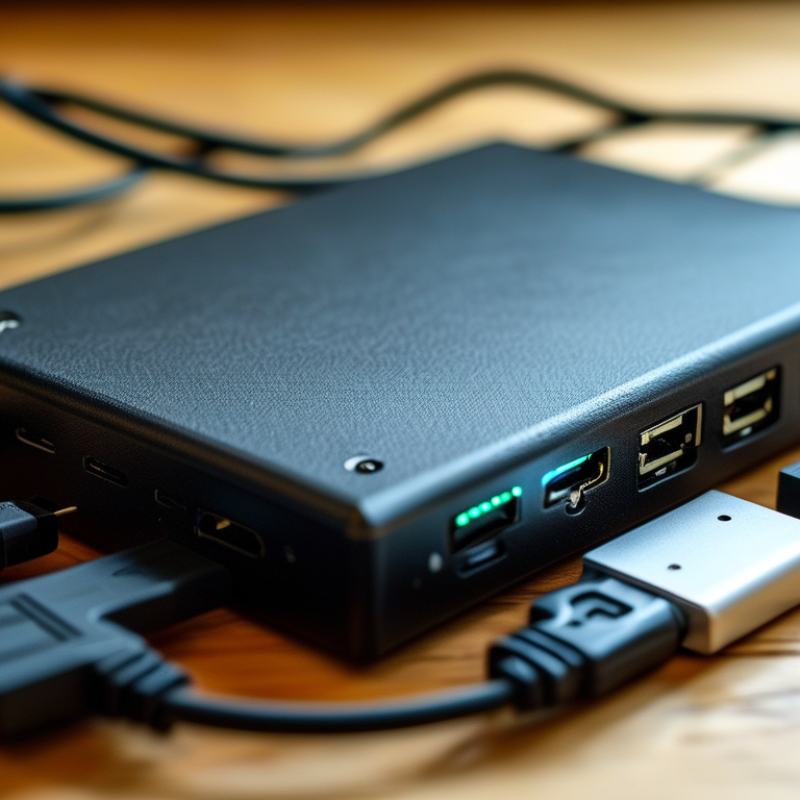
7 Best Fixes for USB Hub Not Recognizing My Hard Drive?

Check the USB Hub, Cable, and Hard Drive Connections

7 Best Fixes for USB Hub Not Recognizing My Hard Drive?

A missing hard drive often has a simple cause: a loose connection. Unplug the hub, then reconnect it firmly to the computer. Inspect the hub port for dust, bent metal, or movement. Try another port, preferably one connected directly to the computer. The USB industry consortium lists USB 2.0 speeds up to 480 Mbps, while newer USB standards support much higher rates. A damaged or low-quality cable can still reduce performance or interrupt detection.

Check every connection in order. Connect the hard drive directly to the computer, without the hub. If it appears, the hub may lack enough power. This matters more with larger external drives. Test a shorter cable, then test the drive on another computer. I have blamed the drive too quickly before. The cable was the real problem.

Tips: Listen for repeated clicking, sudden stops, or repeated reconnect sounds. Stop testing if unusual noises continue, because repeated power cycling may worsen mechanical damage. A 2024 storage-industry reliability report measured an annualized drive failure rate of about 1.92% across a large fleet. That figure does not prove your drive has failed, but it supports checking the drive itself. If direct connection also fails, inspect Disk Management or its equivalent, but avoid formatting before confirming your files are backed up.

Test the Hub and Drive with Different USB Ports

When a USB hub ignores a hard drive, test the hub and drive with different USB ports. Start with a rear motherboard port, not a front-panel extension. Connect the drive directly to the computer. If it appears, the hub may lack power or use a damaged port. Try every hub socket, then reverse the cable ends. Small details matter.

A 2023 drive reliability report analyzed 266,807 storage drives and recorded a 1.70% annualized failure rate. That figure does not prove your drive is defective, but it supports careful testing. Listen for repeated clicks, watch for disappearing folders, and check whether the disk becomes unusually warm. Stop repeated retries if important files are involved. Data recovery becomes harder after continued mechanical stress.

Check the hub’s rated power output. Portable hard drives can draw more current during startup than during normal reading. A powered hub usually handles this demand better. Also compare transfer behavior across USB 2.0 and USB 3.x ports. USB 2.0 offers up to 480 Mbps, while USB 3.2 can reach 10 Gbps under suitable conditions. Real speeds vary. I have misdiagnosed a failed drive when the cable was actually faulty. That mistake is easy to repeat. Test with a known-good cable and another computer before replacing hardware.

Verify Power Supply and External Drive Requirements

A USB hub may appear healthy while failing to power a connected hard drive. I once blamed the cable, but the real problem was insufficient power from the hub. Portable drives can demand extra current during startup, especially when their platters begin spinning. An unpowered hub may not provide enough energy, even if its indicator light is on. That assumption was wrong.

Check the drive’s voltage and current requirements on its label or manual. Compare them with the hub’s output rating, not only its port count. A powered hub with a properly matched adapter is usually more dependable.

Also inspect the wall adapter, power cable, and USB connection for looseness or damage. Try connecting the drive directly to the computer. If it works there, the hub may be underpowered or incompatible. Larger desktop drives may require their own power adapter.

Tips:

Disconnect other devices before testing. Use a short, undamaged cable. Listen for repeated clicking or repeated spin-up sounds; these can indicate unstable power, not simple recognition failure. Test one change at a time. It is tempting to replace everything immediately, but that can hide the actual cause. If the drive becomes unusually hot, smells burnt, or repeatedly disconnects, stop using it and seek professional data-recovery advice. Power requirements vary, so avoid guessing from appearance alone.

Update USB, Storage, and System Drivers

7 Best Fixes for USB Hub Not Recognizing My Hard Drive?

Update USB, Storage, and System Drivers

When a hard drive disappears through a USB hub, I check drivers before blaming the disk. An outdated USB controller driver can misread the hub, while an old storage driver may hide the drive from the operating system. Open Device Manager and inspect USB controllers, disk drives, and storage controllers. Install updates from the computer manufacturer’s official support portal. Avoid random driver-download sites.

Restart afterward. It matters.

I also update chipset and system drivers, then reconnect the hub directly to the computer. This simple test separates driver problems from weak power delivery or a damaged cable. In Disk Management, confirm whether the drive appears without a drive letter. Assigning a letter can restore access, but formatting should never be the first response. I once considered formatting too quickly and nearly erased useful project files.

Driver updates are not magic. If the drive appears intermittently, review system event logs for reset or timeout errors. Disable USB selective suspend temporarily, then test again. The 2024 Uptime Institute Annual Outage Analysis reported that 54% of respondents said their latest outage cost over $100,000. That figure concerns larger systems, but it reinforces a practical lesson: verify backups before changing storage settings. Keep the original cable, hub, and power adapter available for comparison, and record each change. That record makes troubleshooting more reliable.

7 Best Fixes for USB Hub Not Recognizing My Hard Drive? - Update USB, Storage, and System Drivers
Step Recommended Fix What to Check or Change Why It Helps Typical Time Data-Safety Level How to Verify the Result
1 Check power and physical connections Reconnect the hub and drive, try a different USB port, inspect the cable for damage, and use an externally powered hub when the drive requires more power than the port can provide. Portable hard drives may disconnect or fail to appear when the USB connection is loose or the available power is insufficient. 2–5 min Low risk Listen for normal drive startup activity and check whether the drive appears in the operating system’s file manager or disk utility.
2 Test the drive without the hub Connect the hard drive directly to the computer. If possible, test the same drive and cable on another computer. This separates a hub problem from a cable, drive, port, or operating-system problem. 3–10 min Low risk If the drive works directly but not through the hub, focus on hub power, compatibility, firmware, or hub hardware.
3 Refresh USB controller drivers Open the system device manager, locate USB host controllers and hub entries, then use the option to update or reinstall the applicable driver. Restart afterward. Corrupted or outdated USB controller drivers can prevent the operating system from detecting storage devices correctly. 5–15 min Low risk Reconnect the drive and confirm that the USB controller shows no warning icon and that the storage device is detected.
4 Update storage and chipset drivers Install current storage-controller and chipset drivers supplied through the computer’s operating-system update service or hardware support utility. Storage and chipset components manage communication between the USB controller, motherboard, and disk subsystem. 10–30 min Low risk Restart the computer, reconnect the hub, and verify that the drive is listed consistently after repeated reconnects.
5 Assign a drive letter or mount point Open the disk-management tool. If the disk is healthy and has a partition but no letter or mount point, assign an unused one. A detected disk can be absent from the file manager simply because the operating system has not assigned an accessible location. 3–8 min Low risk The partition should appear in the file manager with a new drive letter or mounted path.
6 Disable USB power-saving temporarily In advanced power settings, temporarily disable USB selective suspend. In the device manager, clear the option that allows the computer to turn off a USB hub to save power. Power management can suspend a hub or storage device, especially after sleep, hibernation, or extended inactivity. 5–10 min Low risk Put the computer to sleep and wake it, then check whether the drive remains available without reconnecting the hub.
7 Check disk health and file-system errors Back up accessible files first. Use the operating system’s disk-check utility or a read-only health tool. Do not format or initialize the disk unless its data is backed up. File-system corruption, failing sectors, or an unstable enclosure can stop a drive from mounting even when the USB connection is working. 10 min–several hours Use caution Review the disk-health result, confirm that files open normally, and stop using the drive if it makes repeated clicking sounds or disconnects frequently.

Check Disk Management for Detection and Drive Errors

When a USB hub fails to recognize a hard drive, open the system’s Disk Management utility before replacing hardware. This screen can reveal whether the drive is detected but missing from File Explorer. Look for a disk without a drive letter, an unallocated section, or a warning status. My first assumption was often a damaged drive. Sometimes, the letter was simply missing.

Right-click the healthy partition and assign an unused drive letter. If the disk appears as unallocated, do not create a new volume immediately. That action may overwrite useful recovery paths. Check whether important files exist elsewhere first. A disk marked offline may need to be brought online, but read the warning carefully. If the utility shows “unknown” or “not initialized,” pause before accepting initialization. Data recovery should come before repair when files matter.

If Disk Management shows nothing, test the hub with another port and cable. Connect the drive directly when possible. Some hubs cannot provide stable power for larger mechanical drives. Listen for repeated clicking, sudden stops, or unusual vibration. Those signs suggest a physical problem, not merely a missing letter. I have also seen loose connectors mimic serious disk failures. That mistake is easy to make. After each change, refresh Disk Management and record what changed. Avoid formatting until detection and data safety are clear.

FAQS

: Why is my hard drive missing when connected through a USB hub?

: A loose cable, dusty port, or weak connection may prevent detection. Unplug everything. Reconnect firmly. Try another hub port.

Should I connect the hard drive directly to the computer?

Yes. This test separates hub problems from drive problems. If direct connection works, the hub may provide unstable power.

Can the USB cable cause detection problems?

Yes. Damaged or overly long cables can interrupt detection and reduce performance. Try a shorter cable. I once blamed the drive too quickly.

What should I check in Disk Management?

Look for a disk without a drive letter, an unallocated section, or a warning status. A missing letter may hide a healthy partition from File Explorer.

How do I fix a missing drive letter?

If the partition appears healthy, assign it an unused drive letter. Refresh the storage window afterward. The change may be immediate.

Should I format an unallocated or uninitialized disk?

No, not before checking your files and backups. Creating a volume or initializing the disk may overwrite useful recovery information. Pause there.

What do repeated clicking sounds or sudden stops mean?

They may indicate a physical drive problem rather than a missing drive letter. Stop repeated testing if unusual noises continue. Power cycling can worsen damage.

What if Disk Management shows nothing?

Test another cable, hub port, and computer. Connect the drive directly when possible. Record each change. This helps avoid guessing.

Conclusion

When asking, “Why is my USB hub not recognizing my hard drive,” start by checking every physical connection. Reseat the hub, USB cable, and hard drive firmly, and look for loose or damaged ports. Then connect the hub and drive to different USB ports or another computer to determine whether the issue comes from the hub, the drive, or the original port. If the hard drive requires more power than the hub can provide, use a suitable power source and confirm that the hub meets the drive’s requirements.

Next, update the computer’s USB, storage, and system drivers, then restart the system. Open Disk Management to see whether the drive is detected without a drive letter, marked offline, unallocated, or showing errors. Assigning a drive letter, bringing the disk online, or repairing file-system issues may restore access. These practical checks can help identify connection, power, driver, or disk-management problems without replacing equipment unnecessarily.

Sienna

Sienna

Sienna is a skilled marketing professional with a deep expertise in our company’s core products and services. With a passion for innovation and detail, she plays a pivotal role in crafting insightful blog posts that not only highlight the unique features of our offerings but also provide valuable......